The Nintendo Switch 2 brings enhanced controller compatibility to the table, supporting everything from the official Pro Controller to a variety of Bluetooth gamepads for versatile gaming experiences. Whether launching your console for the first time or expanding for multiplayer sessions, the pairing process remains intuitive and user-friendly across different controller types. Understanding the exact steps ensures smooth connections, minimizing frustration during setup and gameplay.
Preparation Before Pairing
Before connecting any controller, power on the Switch 2 and verify it’s running the latest system software by navigating to System Settings, then System, and selecting System Update. A fully charged controller prevents interruptions during pairing, as low battery can cause failures. All controller management occurs within the Controllers & Sensors section of System Settings, where users can connect up to four controllers simultaneously, depending on the game’s requirements and controller capabilities.
Pairing the Switch 2 Pro Controller Wired
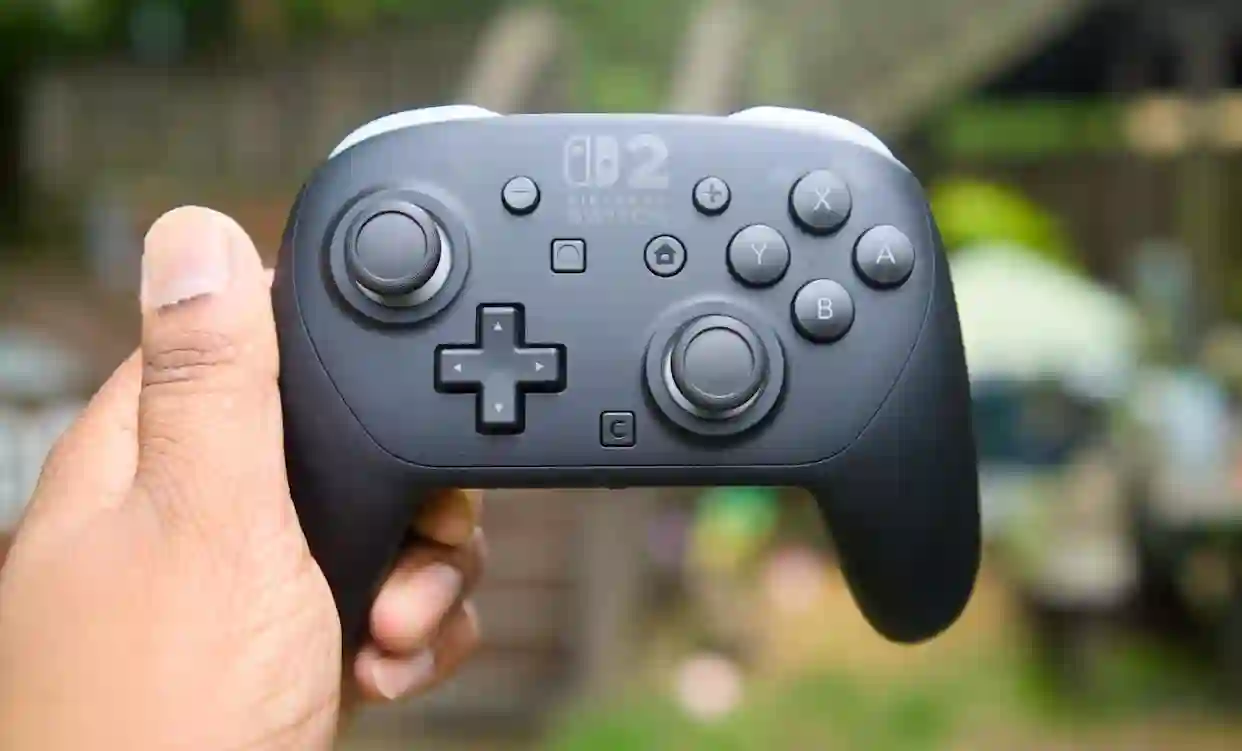
Nintendo’s Switch 2 Pro Controller offers the most straightforward connection via USB-C cable, ideal for initial setup or troubleshooting. Simply connect the controller directly to the console’s USB-C port using a compatible cable. Wake the Switch 2 from sleep mode and access the Controllers menu from the Home screen—the system automatically detects and pairs the controller without additional input.
This wired method provides an instant, reliable link and charges the controller simultaneously, making it perfect for users with low battery levels. Once paired, disconnect the cable to switch to wireless operation seamlessly. The Pro Controller’s ergonomic design and extended battery life make it the premium choice for prolonged sessions, supporting features like motion controls and customizable button mapping.
Wireless Pairing for Pro Controller
For cable-free setup, start by powering on the Switch 2 and navigating to System Settings, Controllers & Sensors, then Change Grip/Order. On the Pro Controller, locate the small Sync button on the top edge near the USB-C port and press and hold it until the indicator lights flash rapidly, signaling pairing mode. The console scans automatically and displays the controller when detected—select it to complete the connection.
The lights stabilize to indicate successful pairing and assignment to a player slot. This method works reliably within close range and supports the controller’s full feature set, including HD rumble and amiibo functionality. Users appreciate the Pro Controller’s durability and comfort during extended play, whether in handheld mode or docked TV gaming.
Connecting Third-Party Bluetooth Controllers
The Switch 2’s Bluetooth support extends to numerous third-party gamepads from PC, Android, and iOS ecosystems, broadening options for existing peripherals. First, activate the controller’s pairing mode—typically by holding a dedicated sync button or a button combination until LEDs flash, though specifics vary by model. Consult the controller’s manual for exact instructions if unsure.
From the Switch 2 Home Menu, select Controllers, then Change Grip/Order to enter scanning mode. Compatible devices appear in the list; highlight and select the desired controller to pair. Confirmation may include button layout prompts or sensor calibration. Up to four wireless controllers connect for local multiplayer, each auto-assigned to player slots with stable, low-latency performance once established.
Troubleshooting Common Issues
Pairing failures often stem from simple fixes: ensure Bluetooth enables under System Settings, Controllers & Sensors, restart the controller by removing batteries or holding the power button, and confirm sufficient charge. Reduce interference by staying within 10 feet and avoiding other wireless devices. For multi-profile controllers, switch to Switch-compatible or standard Bluetooth gamepad mode.
Pro Controller issues resolve quickest with wired USB-C connection, forcing a fresh sync before wireless attempts. Restarting the console clears temporary glitches, while updating firmware addresses compatibility bugs. Persistent problems warrant checking Nintendo’s support resources or controller-specific diagnostics.
Reconnecting and Managing Controllers
Paired controllers reconnect effortlessly by pressing any button—the Switch 2 wakes and recognizes them automatically within range. Player assignments persist across sessions, streamlining multiplayer setups. To reorder or remove controllers, revisit Change Grip/Order for intuitive drag-and-drop management.
If a controller pairs with another device like a phone or PC, re-pairing to the Switch 2 restores functionality. Battery indicators display in the Controllers menu, aiding management during long sessions. Advanced options include vibration intensity, motion sensor calibration, and button remapping for personalized control schemes.
This comprehensive pairing system makes the Switch 2 accessible for all skill levels, supporting casual play to competitive multiplayer. The flexibility accommodates diverse preferences, ensuring every gamer finds a comfortable setup without compromising performance or enjoyment.