
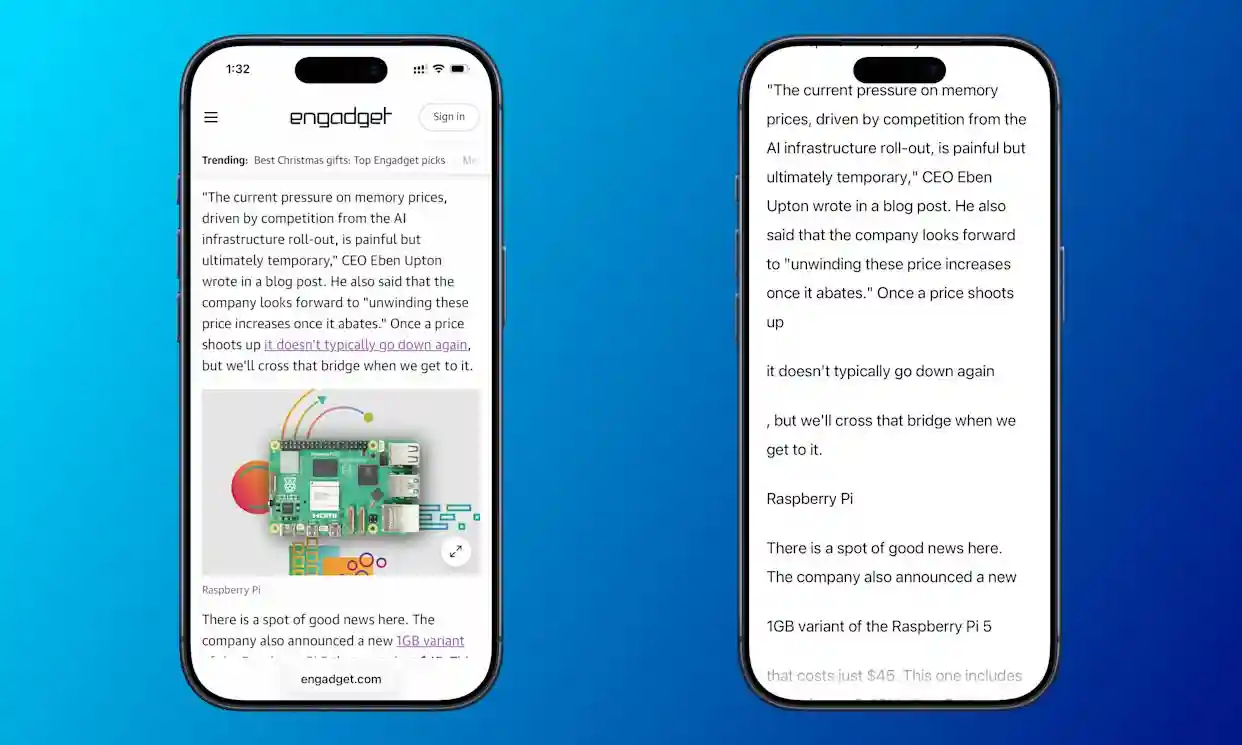
Earlier this year, Apple introduced Accessibility Reader, a powerful tool designed to make on-screen reading easier and more comfortable. Although the feature is ideal for people with visual difficulties, it benefits anyone who wants cleaner text, simplified layout or spoken content. It works across a wide range of Apple devices and offers a full-screen reader view, similar to Safari’s Reader Mode, but available in almost every app. Once enabled, you can launch it quickly, customize how the text looks, and even listen to it read aloud.
Accessibility Reader is available on iPhone, iPad, Mac and Vision Pro. Supported versions include iOS 26, iPadOS 26, macOS 26 Tahoe and visionOS 26. After switching it on, the experience is smooth, flexible and tailored to your preferences.
What Accessibility Reader does
Accessibility Reader removes distractions and presents text clearly. The view is simple, uncluttered and focused on readability. It automatically detects text on the screen and displays it in a large, centered layout. For people with eye strain, reading fatigue or low vision, this makes a significant difference. The feature also includes optional text-to-speech so you can listen to content instead of reading.
Instead of zooming, pinching or constantly scrolling, the Reader makes the information feel organized and comfortable. You can adjust style elements such as font, spacing, colors, theme, and more. Because it works across many apps, you are not limited to webpages. Emails, articles, documents and long messages can all be converted into a smooth reading surface.
How to turn on Accessibility Reader
Enable it through Settings before using any shortcuts. The process is identical across devices:
• Go to Settings
• Open Accessibility
• Open Read & Speak
• Turn on Accessibility Reader
Once active, you can launch it in several convenient ways, depending on your device.
Ways to open Accessibility Reader
Apple provides multiple launch methods, allowing you to choose the most natural option.
Accessibility Shortcut (iPhone / iPad / Vision Pro)
• Triple-click the side button (or the Home button on older devices)
• The Accessibility Shortcut menu appears
• Select Accessibility Reader
If you prefer a cleaner menu, remove unwanted items in Settings > Accessibility > Accessibility Shortcut so the tool opens instantly.
Control Center option (iPhone / iPad)
• Swipe down from the top-right to open Control Center
• Press and hold an empty area
• Choose “Add a control”
• Add Accessibility Reader
After that, tap the new icon whenever you want to launch the tool.
Keyboard shortcuts on Mac
On macOS, the default shortcut to open Accessibility Reader is Cmd-Esc. You can personalize the shortcut in Settings > Accessibility > Accessibility Reader by selecting the information icon. The tool also appears in the macOS Accessibility Shortcut, which you can open with Opt-Cmd-F5 or by pressing Touch ID three times, though the Cmd-Esc shortcut is usually fastest.
How to listen to text
Text-to-speech is built in. When Reader is open, press the play button to hear the content read aloud. You can pause at any moment, jump back or skip forward. If you prefer a faster or slower voice, use the speed button to adjust the rate. Automatic speech on launch is available in the settings menu for anyone who wants hands-free reading.
How to customize your reading view
Accessibility Reader offers extensive styling controls. After launching it, tap the AA customization button. You can adjust almost everything, including size, theme, colors, typeface and line spacing. Each change updates immediately, helping you find the most comfortable layout for long reading sessions.
For people who spend time on screens, this feature reduces strain and provides a more relaxed experience. For those with visual disabilities, it can make the difference between struggling to read and enjoying content with clarity and confidence.
Accessibility Reader is simple, flexible and built into Apple devices. Whether you want distraction-free reading or spoken text, this feature enhances everyday use without adding complexity.