Apple’s Magnifier app, originally popular on iPhone for accessibility, now enhances MacBooks with powerful camera-based magnification. Introduced during Global Accessibility Awareness Day announcements, this feature arrived with macOS 16 Tahoe, transforming MacBooks into versatile tools for low-vision users or anyone needing to zoom distant details. Compatible with built-in webcams, external USB cameras, or iPhones via Continuity Camera, Magnifier excels in classrooms for reading whiteboards, offices for inspecting documents, or daily tasks like menu reading. Users can capture static images, analyze live feeds, extract and format text with machine learning, or apply visual adjustments for clarity. Requiring macOS 16 Tahoe or later on supported hardware like M-series MacBooks, setup is straightforward via Spotlight search or the Applications folder. This guide covers launching, core functions, text recognition, personal magnification, advanced customizations, and troubleshooting for optimal performance.
Launching and Initial Setup
To begin, ensure your Mac runs macOS 16 Tahoe or newer, updated through System Settings > General > Software Update. Magnifier integrates seamlessly with Continuity features, so sign into the same Apple ID on your iPhone and Mac, with Bluetooth, Wi-Fi, and Handoff enabled for wireless camera use. Launch the app by pressing Command + Space, typing “Magnifier,” and hitting Enter, or find it in Applications under Accessibility tools. Upon opening, the interface displays a live camera feed by default using your MacBook’s built-in webcam, with a central zoom slider, menu bar for camera selection, and sidebar for captured images. Grant camera permissions if prompted, and explore toolbar icons for Reader mode, filters, and controls. Multiple windows support simultaneous views, like Desk View for desk documents alongside a rear-facing iPhone feed for presentations.
Extracting and Reading Faraway Text
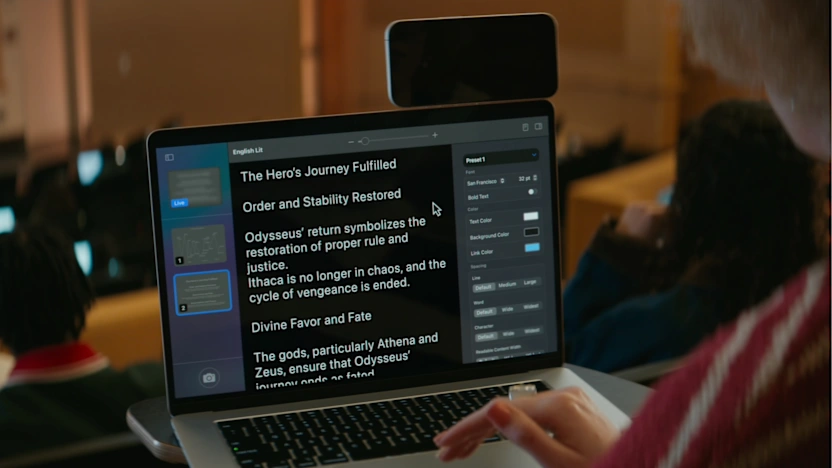
Magnifier’s standout capability leverages on-device machine learning to detect, extract, and stylize text from live or captured views, ideal for distant signs, boards, or papers. Position your camera toward the text—use Continuity for iPhone to point backward in large rooms—then activate Reader mode for formatted output.
– Open Magnifier and select your desired camera from the menu bar Camera dropdown, such as Desk View for close documents or iPhone rear camera for distance.
– Click the Reader icon (document symbol) in the top-right to analyze the feed; detected text appears cleanly formatted below the preview.
– Tap the sidebar gear icon to customize: select fonts like bold sans-serif, invert colors for high contrast (e.g., white text on black), adjust size, line spacing, or backgrounds.
– For audio playback, hit the Play button; use Pause, Skip Forward/Backward for navigation, and the 1x dropdown for speeds from 0.5x to 2x.
– Capture a still via the bottom-left Camera button to freeze and reanalyze text later from the sidebar gallery.
This works reliably on printed materials, screens, or handwriting, with real-time updates as you adjust the camera. Save customized Reader settings as defaults for repeated sessions.
Zooming In on Yourself or Close Details
Defaulting to the built-in webcam, Magnifier provides high-quality self-view for personal care tasks, outperforming third-party webcams which may lag. Drag the top-center slider for smooth zoom up to 15x, previewing instantly in the main window. Enhance with adjustments:
– Switch cameras via menu bar if needed, prioritizing built-in or iPhone for minimal latency.
– Apply filters (Menu bar > Filters) like grayscale, inverted, or color-specific (red/black, yellow/black) for better visibility.
– Tweak brightness, contrast, and perspective sliders to correct angles or lighting.
– Snap photos for sidebar storage; edit them individually with image tools for exposure, sharpness, or filters.
– Enable Straighten for angled shots, ensuring crisp results.
Performance shines on Apple Silicon MacBooks, rendering fluid feeds even at max zoom.
Advanced Customizations and Tips
Beyond basics, Magnifier offers pro-level tweaks for tailored workflows. Create multiple windows (File > New) for split views, like monitoring a speaker while reading notes. Integrate with Accessibility Reader for system-wide text enhancements, or pair with external monitors for larger canvases. Filters extend to color blindness aids, while Activities (inspired by iOS) let you save presets—though Mac emphasizes global settings. For Continuity iPhone use, position the phone stably, disable Center Stage if unwanted, and select specific lenses (1x main for sharpness). Battery impact is low, but wired USB connections reduce latency further.
Troubleshooting common issues: Update macOS/iOS, restart Bluetooth, or test cameras in Photo Booth. Laggy third-party webcams? Switch to built-in. No text detection? Ensure good lighting and clear focus lock. Permissions blocked? Recheck in System Settings > Privacy > Camera. Share captures via File > Share, or export to Photos for editing. Magnifier elevates Mac accessibility, making distant details accessible effortlessly—perfect for students, professionals, or anyone in bright/noisy environments. Experiment with combinations for personalized power.